Introduction
Plug a USB drive into a printer, and you'd expect it to just work. Most of the time, it does—until it doesn't.
Office multifunction printers, Zebra label printers, industrial systems, and even 3D printers now support direct printing from a USB flash drive with no computer required.
HP documents this walk-up capability across its LaserJet Enterprise, OfficeJet Enterprise, and PageWide Enterprise lines, but only on models with an easy-access USB port near the control panel. Not every printer with a USB connector supports it (HP Support).
That's where things get complicated. Drive format, file type, printer firmware, and admin settings all determine whether your job prints or stalls.
This guide walks through the exact steps, the requirements that trip people up, and what to do when your drive won't cooperate. You'll also see a faster option if you need to hand the same file to a crowd.
Key Takeaways
- Use a FAT32-formatted drive and supported files (PDF, JPEG, TIFF, or XPS) or the printer won’t see your content
- Print in minutes: insert the drive, choose Print from USB, select the file, set options, and start
- Format, file type, firmware, and admin rights decide success more than simply plugging the drive in
- For repeat file distribution, pre-loaded custom USB drives beat printing the same jobs by hand each time
How to Print Directly from a USB Flash Drive (Step-by-Step)
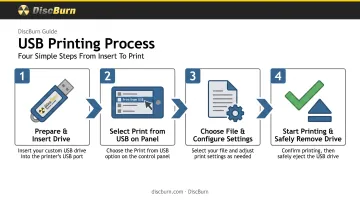
Step 1: Prepare and Insert the USB Flash Drive
Start with the drive itself, not the printer.
- Format the drive to FAT32, the format most office and industrial printers support
- Save files in the drive's root directory, not buried in nested folders
- Name files clearly so they're easy to spot in a file list
- Insert the drive into the printer's front or panel USB port, not the rear computer-facing port
Avoid removing or inserting the drive while the printer is starting up or mid-job. That's a fast track to a corrupted file or a stuck print queue.
Step 2: Select "Print from USB" on the Control Panel
Most printers auto-detect a connected drive within a few seconds, prompting a file list or menu option.
If nothing happens automatically:
- Check the control panel menu for "Print from USB", "USB Mem. Print," or similar wording (it varies by brand)
- Confirm the feature is actually enabled—on networked office printers, an administrator may need to turn it on first
HP Enterprise models need this turned on under Settings > Copy/Print > Print > Enable Device USB, or in the Embedded Web Server under "Print from USB Drive Settings" (HP Support).
If that setting is off, the menu option never appears. No error, no explanation.
Step 3: Choose File and Configure Print Settings
Once the file list loads:
- Browse to your file, or use "Select All" to batch multiple print-ready files at once
- Confirm the file type is supported: commonly PDF, JPEG, TIFF, or XPS (varies by model)
- Adjust copies, color mode, paper tray, duplex printing, and layout before hitting print
Some printers cap how many files you can select in one batch. Check your manual if you're printing a large set.
Step 4: Start Printing and Safely Remove the Drive
Press Start or Print, then watch the control panel for error prompts as the job processes.
Wait until the printer confirms the job is complete. Only then remove the drive—pulling it early risks an incomplete print or a corrupted file that won't open next time.
What You Need & Key Factors for Successful USB Printing
Preparation matters more than luck. Get the format and file specs wrong, and the printer won't even see your drive, let alone print from it.
Drive & File Requirements
- Use a USB 2.0 or 1.1 interface formatted to FAT32; multi-partition drives typically aren't recognized
- Files must not be password-protected or encrypted; most printers reject secured PDFs outright
- Confirm your printer's capacity limits—they vary by brand. Canon's USB Direct Print, for example, supports FAT32 drives up to 32 GB and files up to 2 GB (Canon)
Key Parameters That Affect Print Quality & Success
File Format Compatibility Unsupported file types either won't display in the file list or will fail partway through printing. Convert files to PDF or JPEG before attempting a USB print—these formats have the broadest support across manufacturers.
Printer Firmware Outdated firmware can fail to recognize newer USB drives or certain file formats. Updating firmware often fixes detection errors that otherwise look like drive problems.
Resolution & DPI Settings Some printers let you choose a processing resolution manually. Canon's USB Direct Print interface, for instance, offers 600 dpi for speed or 1200 dpi for sharper edges and small text, as a selectable option rather than an automatic downgrade (Canon). Know your printer's options so the output matches what you expect.
Security & Administrator Permissions On enterprise and networked printers, USB ports are sometimes disabled entirely for data security compliance. Xerox notes that disabling USB ports blocks unauthorized access and blocks USB printing along with it (Xerox). If the "Print from USB" option is missing, that's often why.
Common Mistakes & Troubleshooting When Printing from USB
Most USB print failures come down to format, file placement, or pulling the drive too soon. Avoid the mistakes below, then work the checklist if something still fails.
Common Mistakes to Avoid
- Formatting the drive as NTFS or exFAT instead of FAT32 (many printers never detect it)
- Disconnecting the drive mid-print or during printer startup
- Sending encrypted or DRM-locked files without removing security first
Troubleshooting Common Issues
| Problem | Likely Cause | What to Check |
|---|---|---|
| Printer doesn't detect the drive | Wrong format, multiple partitions, faulty port | Reformat to FAT32, try another USB port, test the drive on a computer first |
| File doesn't appear in the list | Unsupported file type or nested folder placement | Convert to a supported format and move it to the root directory |
| Print job fails midway | Early disconnection, corrupted or oversized file | Verify file integrity and printer memory; don't remove the drive until confirmation |
Work through this order on most brands:
- Confirm the USB or walk-up menu is enabled on the printer
- Reseat the drive and try a different USB port if needed
- Check file system and format rules for your exact model (usually FAT32)
- Test with one simple supported file in the root directory
- Check admin or policy locks last if the drive still won't show
When to Use Direct USB Printing vs. Alternatives
Direct USB printing works well for one-off jobs at shared or walk-up printers (offices, libraries, print shops, industrial label printers) where a connected computer isn't practical.
It becomes a bottleneck when you're distributing the same file to dozens or hundreds of people. Reformatting, reloading, and reprinting from a single drive over and over eats hours you probably don't have.
Network or Cloud Printing works better for remote jobs across multiple devices, though it depends on a stable network connection and proper driver setup on each machine.
Direct Computer Printing still makes sense when you're working from a single device with drivers already installed. You lose the portability of a USB drive across multiple printers, but for straightforward single-machine jobs, it's often the simplest route.
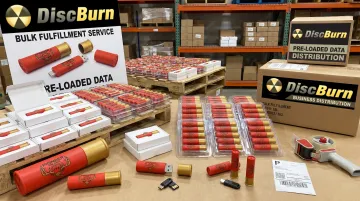
Custom Pre-Loaded, Branded USB Drives solve the repeat-distribution problem entirely. Instead of printing the same manual, brochure, or training file one drive at a time, businesses, schools, and event organizers can order drives that arrive already printed and pre-loaded with the exact content.
DiscBurn's custom USB printing and data-loading service handles this at scale:
- 100-unit minimum for standard custom USB drives; 50-unit minimum for USB Music Cards, the compact card-style format suited to smaller runs
- 3 business-day standard turnaround, with 24-hour rush available on qualifying orders
- Connector options including standard USB, USB-C, and Micro USB, plus adapters for mixed-device compatibility
- Data loads (bootable, application, or standard) verified through offline MD5 checks in an air-gapped Linux environment before shipment
- REACH/RoHS-compliant NAND sourcing available for organizations with procurement requirements
Conclusion
Direct USB printing is convenient when the drive format, file type, and printer settings line up. Most failures trace back to a FAT32 mismatch, an unsupported file, or pulling the drive too soon. The printer itself is rarely the actual problem.
For one-off jobs, troubleshoot with the steps above and you'll likely be printing within minutes. For bulk or repeat distribution, professionally prepared custom USB drives (like those from DiscBurn) offer a scalable, presentation-ready alternative that skips the manual printing loop entirely.
Frequently Asked Questions
What file formats can I print from a USB flash drive?
Most printers support PDF, JPEG, TIFF, and XPS files directly from a USB drive. Some office models also accept Office documents such as Word or Excel.
Why is my USB drive not detected by the printer?
The most common cause is formatting: printers generally expect FAT32, not NTFS or exFAT. Multiple partitions can also block detection, so test the drive on a computer first to rule out a hardware fault.
Can I print password-protected files from a USB drive?
No. Most printers reject encrypted or password-protected PDFs outright, so remove the security settings before copying the file to the drive.
Is it safe to remove the USB drive immediately after printing?
No. Wait for the printer's confirmation that the job is complete. Removing the drive too early risks file corruption or an incomplete print.
Do all printers support printing directly from a USB flash drive?
No. Support depends entirely on the printer model. Many office MFPs and label printers include this feature, but basic home printers often don't.
What's a good alternative if I need to distribute the same file to many people instead of printing repeatedly?
Custom pre-loaded USB drives are a faster, more scalable option. DiscBurn's printing and data-loading service handles both the branding and the content load in one order, cutting out repeated manual printing.