
Many IT teams put off file server migrations because manual transfers are slow, error-prone, and risk breaking user access paths. Storage Migration Service (SMS) is Microsoft's built-in answer to that problem.
This guide walks through how SMS works, the step-by-step migration process, best practices, common pitfalls, and what to do with your old server's data once the cutover is complete.
Key Takeaways
- Storage Migration Service is a free Windows Server/Admin Center tool that moves file servers without changing access paths.
- Migration happens in three phases: inventory, transfer, and cutover.
- SMS supports sources back to Windows Server 2003 and destinations from on-prem clusters to Azure VMs.
- Plan cutover with a decommission timeline and an archival strategy for compliance-sensitive data.
What Is a Storage Migration Service?
Storage Migration Service is a graphical feature built into Windows Server, managed through Windows Admin Center. It inventories data on an old file server, transfers that data to a new one, and (if you choose) moves the old server's network identity over too, so nobody has to update a mapped drive or a broken shortcut.
Two components do the heavy lifting:
- Orchestrator — manages the migration job itself, tracking inventory, transfer, and cutover status
- Proxy service — handles the actual SMB data transfer, inventory scanning, and cutover work on the destination server
What SMS Can Migrate From and To
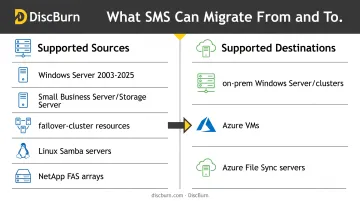
Supported sources include:
- Windows Server 2003 through 2022 (and Server 2025)
- Small Business Server and Windows Storage Server editions
- Windows failover-cluster file-server resources
- Linux servers running Samba
- NetApp FAS arrays hosting CIFS on ONTAP 9
Destinations include on-premises Windows Server or failover clusters, Azure VMs, and servers running the Azure File Sync agent. One catch worth flagging: Azure Files itself isn't a direct SMS destination. Route through Azure File Sync instead.
SMS handles three jobs:
- Inventories files, shares, and security settings
- Copies data to the destination
- Optionally transfers the source server's name and IP to the new box
Why Businesses Need to Migrate Aging File Servers
Unsupported operating systems stop receiving security patches the moment vendor support ends. Missing new features is the smaller problem; the unpatched attack surface is the real one. That gap matters more than most admins assume.
A Ponemon Institute survey hosted by ServiceNow found that 60% of breach victims said they were compromised through a known vulnerability that simply hadn't been patched. Legacy file servers running past end-of-support are sitting in exactly that blind spot.
Beyond security, modernizing file infrastructure typically brings:
- Faster read/write performance on newer hardware and storage tiers
- Better integration with cloud backup and Azure File Sync
- Reduced risk of hardware failure on aging, out-of-warranty equipment
Regulated industries feel this urgency most acutely. Hospitals, schools, and corporate compliance teams often have data retention mandates that assume the underlying infrastructure is secure and supported. Unpatched file servers in healthcare or education create audit exposure on top of the technical risk.
How Storage Migration Service Works: The Migration Process
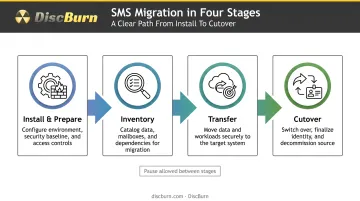
SMS follows a predictable four-stage workflow: install and prepare, inventory, transfer, and cutover. Each stage builds on the last, and you can pause between them without losing progress.
Step 1: Install and Prepare the Environment
Start by installing the SMS Orchestrator and Proxy service through Windows Admin Center. Placement matters: Microsoft states that installing the Proxy on a Windows Server 2019-or-later destination roughly doubles transfer speed. Data then moves directly from source to destination instead of hopping through the orchestrator first.
Before scanning anything, open these firewall rules between source and destination:
- File and Printer Sharing (SMB-In)
- Netlogon Service (NP-In)
- Windows Management Instrumentation (DCOM-In and WMI-In)
- TCP 28940 (Orchestrator) and TCP 28941 (Proxy)
Domain-joined sources need to be scanned from a server on the same domain or forest, and the destination must join that same domain too. If you're migrating more than one or two servers, run the Orchestrator on a separate box rather than the destination itself. That keeps job management cleaner.
Step 2: Inventory the Source Servers
Create a migration job in Windows Admin Center, supply admin credentials, and add the source devices or clusters you want scanned. The inventory pass pulls in shares, network configuration, and volume data.
Microsoft doesn't officially call this scan "read-only," but it does confirm that SMS never removes files from the source, and cutover later on doesn't alter source contents either. That's a meaningful distinction if you're nervous about touching a production server.
Once the scan finishes, review the results for validation warnings — excluded system folders are common and usually expected, not errors.
Step 3: Transfer Data to the Destination
Next, map source volumes and shares to their destination equivalents and select which shares to include. This step also asks how to handle local users and groups, and the choice affects permissions downstream:
- Rename accounts with the same name — migrates every local user/group, renaming any destination account that conflicts
- Reuse accounts with the same name — maps identically named accounts between source and destination
- Don't transfer users and groups — skips local account migration entirely
Monitor the transfer job and check error logs as it runs. The good news: subsequent transfers are incremental, copying only files changed since the last pass. That means you can run transfer multiple times to keep data in sync right up until cutover day.
Step 4: Cut Over to the New Servers
During cutover, SMS moves the source server's name and IP address to the destination. Users and applications never need reconfiguration: mapped drives, scripts, and shortcuts keep working as if nothing changed.
There's a brief service interruption while both servers restart and rejoin the domain under their new identities. Total downtime depends heavily on Active Directory and DNS replication speed across your environment, not just the restart itself.
Cutover is optional. Some organizations finish the transfer phase and stop there, keeping the new server under its own name rather than assuming the old identity.
Best Practices for a Smooth File Server Migration
A little rehearsal goes a long way here. Before touching a business-critical server, consider these steps:
- Run a pilot migration on a non-critical file server first to validate credentials, firewall rules, and timing estimates
- Schedule cutover during low-usage windows — evenings or weekends — and give end users advance notice of the expected downtime
- Confirm backup privileges and admin rights on both source and destination service accounts before starting
That last point prevents the single most common headache in SMS migrations: transfer failures caused by missing permissions, which we'll cover next.
Common Challenges and Troubleshooting Tips
Most SMS problems trace back to permissions or connectivity, not the tool itself. Here's what tends to trip people up:
- Error 5, "Access is denied" — the migration account lacks the Open For Backup privilege or enough share permissions.
- Error 5 fix — install KB4490481 on the orchestrator and destination; give the account local admin rights and Back up files and directories via Group Policy.
- Inventory scan failures (Error 53) — Remote Registry is stopped, firewalled, or blocked by missing read permissions.
- Diagnosing tricky cases — the Storage Migration Service Helper PowerShell script on GitHub pulls Orchestrator and Proxy event logs for faster root-cause work with Microsoft Support.
Post-Migration: Decommissioning and Archiving Your Old Data
Cutover doesn't mean it's time to unplug the old server. Microsoft's own guidance recommends keeping it online (unchanged, with no user access) for at least two weeks, then powering it down for another four weeks before final decommissioning.
That buffer gives you room to catch anything that got missed during transfer.
A few other loose ends worth checking:
- Reissue certificates. Renaming a server during cutover doesn't automatically update or reissue any certificates it held. Review these manually.
- Plan long-term retention. For hospitals, schools, and corporate compliance teams, retiring a file server often triggers a records-retention obligation, not just a technical cleanup task.
- Retire leftover jobs. Disable backup agents, monitoring, and scheduled tasks still pointed at the old server so they don't fail quietly after shutdown.
This is where a physical, offline archive earns its place alongside your cloud backups. DiscBurn produces bulk archival copies of retired server data across several formats:
| Format | Capacity per unit |
|---|---|
| DVD (single/dual-layer) | 4.7GB / 8.5GB |
| Blu-ray | 25GB / 50GB |
| USB flash drive | 512MB up to 128GB (custom capacities available) |
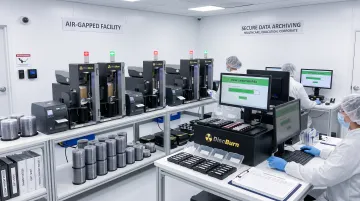
Every load goes through offline MD5 verification in an air-gapped environment. DiscBurn's serialized disc printing helps healthcare, education, and corporate training teams keep organized batch records that auditors can trace during compliance reviews.
Once an archive copy is validated, DiscBurn's data sterilization service can securely destroy old physical source media and complete the decommission process.
Frequently Asked Questions
What is a storage migration service?
Storage Migration Service (SMS) is a Windows Server feature, managed through Windows Admin Center, that inventories, transfers, and optionally cuts over a file server's identity to a new destination with minimal disruption to users.
What is the best storage migration tool?
For Windows environments, Microsoft's built-in Storage Migration Service is usually the strongest fit: it's free, integrated, and supports legacy sources back to 2003. Third-party tools may fit better for highly customized or non-Windows setups.
Can Storage Migration Service consolidate multiple source servers into one destination?
Not into a single standalone server. SMS supports consolidation only when the destination is a failover cluster with separate file-server resources for each source.
Does migrating with Storage Migration Service cause downtime for users?
Only the cutover step causes brief interruption, during the renaming and restart process. Inventory and transfer run in the background without touching source server access.
Can I migrate from very old servers like Windows Server 2003?
Yes, SMS supports sources back to Windows Server 2003. Domain controllers can be inventoried and transferred, but they can't be cut over. Demote them first.
How long does a typical file server migration take?
It depends on data volume, file count, and network speed. Installing the Proxy service and keeping servers updated with performance patches both help cut transfer time significantly.